

 Schedule I
How to Update a Schedule 1 Server (Game, Mod and Clients)
Update a Schedule I dedicated server after a patch: back up DedicatedServerSave, update the game, MelonLoader and S1DS together, then match every client mod.
Updated Oct 6, 2026 · 6 min read
On this page
- What an update changes and what it keeps
- What you are working with
- Before you start
- Step 1: Save and stop
- Step 2: Back up first
- Step 3: Update the game
- Step 4: Update MelonLoader and S1DS
- Step 5: Start and wait for MelonLoader
- Step 6: Every player updates their client mod
- The gotcha: Steam updates players before the mod is ready
- Common problems
- Updating on GamezServers
- FAQ
To update a Schedule I dedicated server, stop it, back up UserData/DedicatedServerSave and UserData/server_config.toml, update the game files, then install the S1DedicatedServers server zip built for that game version (Il2cpp_Server.zip for the normal version, Mono-Server.zip for the alternate branch) and start it. Every player then downloads the matching client mod again. The game, the server mod and every client mod must match, so wait for an S1DS release that supports the new game version before updating.
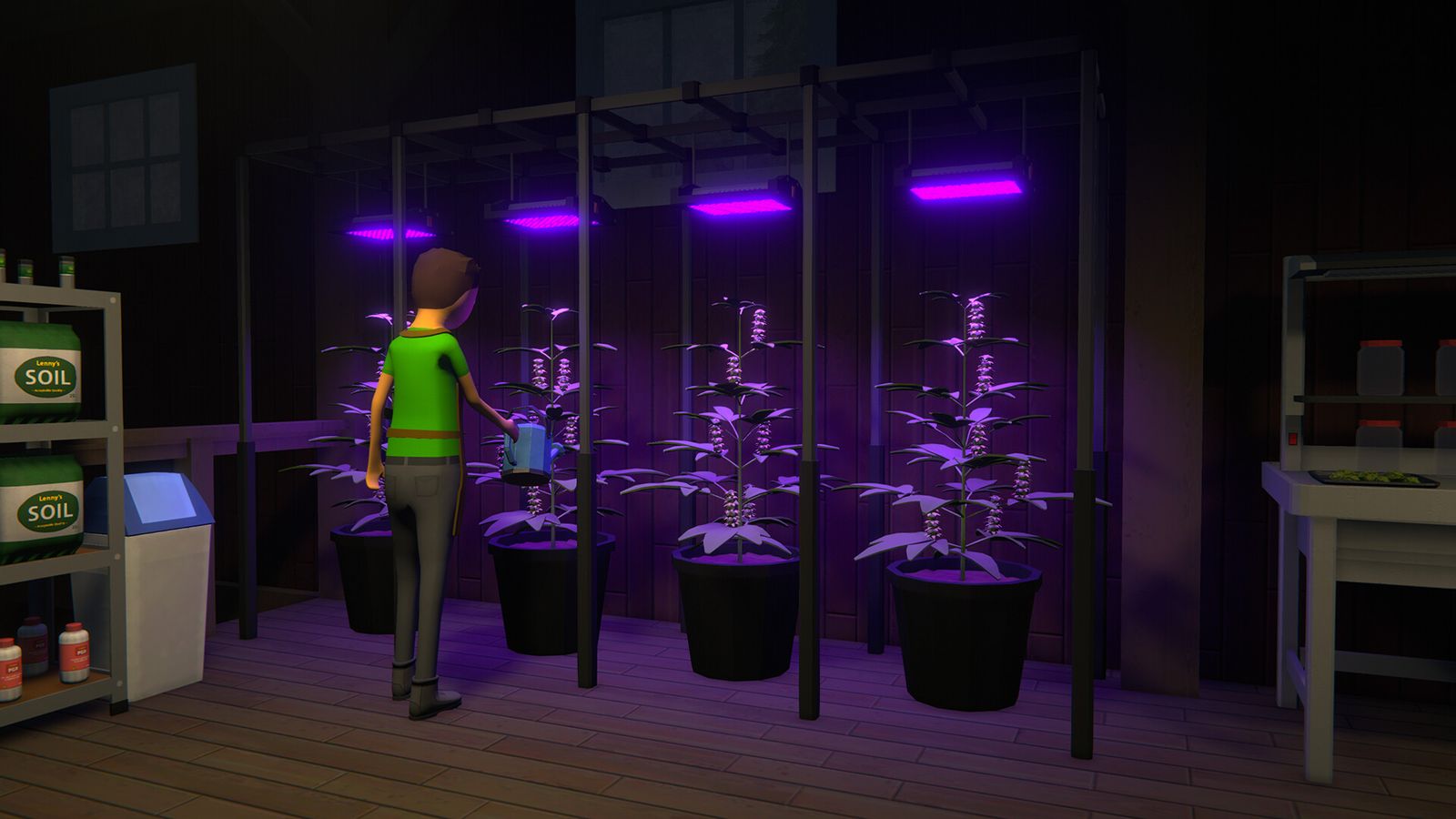
What an update changes and what it keeps
| Thing | On an update |
|---|---|
Game files (Schedule I.exe, Schedule I_Data) |
Replaced with the new game version |
| MelonLoader | Updated if you install a newer release. Never use v0.7.1 |
S1DS server mod in Mods/ |
Replaced with the new release |
Your other mods in Mods/ |
Kept, but they may need their own update |
World in UserData/DedicatedServerSave |
Kept, and converted to the new version when it next saves |
server_config.toml (name, password, ports, admins) |
Kept |
| Players' client mod | Not updated. Each player replaces it themselves (on GamezServers, by downloading the pack again) |
What you are working with
| Piece | What it is | Where it lives |
|---|---|---|
| Schedule I | The full game, run headless as the server | Server folder |
| MelonLoader | The mod loader | MelonLoader/ and version.dll in the server folder |
| S1DS server mod | Turns the game into a dedicated server | Mods/ |
| S1DS client mod | What players need to join | Each player's Mods/ folder next to Schedule I.exe |
| Save | Properties, money, employees, product | UserData/DedicatedServerSave/, or the saveGamePath in the config |
| IL2CPP or Mono | The normal Steam version, or the alternate beta branch |
Server and every player must use the same one |
Before you start
- Check the S1DS releases. Open the S1DedicatedServers releases page and find a release that names the new game version. At the start of October 2026, v1.1.0 was the stable release and v1.1.1-beta.1 was a pre-release for the Schedule I 0.4.7 open beta.
- Read TVGS's notes on Steam news for save changes. The 0.4.7 beta, for example, converts player appearances to a new format that does not load on the old version.
- Tell players. Everyone will reinstall the client mod after you update.
Step 1: Save and stop
Type save in the console, then stop the server with shutdown.
Step 2: Back up first
Copy UserData/DedicatedServerSave (or your saveGamePath folder) and UserData/server_config.toml off the server. Updates convert the save, and there is no way back without this copy.
Step 3: Update the game
Update Schedule I in the server folder the same way you installed it: through Steam on a Windows PC, or SteamCMD with a Steam account that owns the game (anonymous login cannot download it). Stay on the same branch: default for IL2CPP, alternate for Mono.
Step 4: Update MelonLoader and S1DS
- Download
MelonLoader.x64.zipfrom the MelonLoader releases (v0.7.2 or newer) and extract it into the server folder if a newer one is out. - Download the matching S1DS server zip and extract it so its
Modsfolder merges with yours and replaces the old S1DS files. - On IL2CPP, delete
MelonLoader/Dependencies/Il2CppAssemblyGenerator/Cpp2IL/cpp2il_out. It is a cache MelonLoader rebuilds, and stale files there cause errors such asPass11ComputeTypeSpecificsafter a game update. - Update any other mods in
Mods/to builds for the new game version and the same runtime.
Step 5: Start and wait for MelonLoader
Start the server. The first start after an update rebuilds MelonLoader's generated files and can take several minutes. Wait for the server to report it is ready before anyone connects.
Step 6: Every player updates their client mod
Each player downloads the matching client zip (Il2cpp_Client.zip or Mono-Client.zip) from the same S1DS release, extracts it into the folder with Schedule I.exe and replaces the old files. On a GamezServers server, players instead download the GamezServers pack again from the same link and drag it into the game folder, picking Replace. Then Servers > Direct Connect works again. Our joining guide has the steps for players.
The gotcha: Steam updates players before the mod is ready
Steam updates everyone's game the moment TVGS ships a patch. S1DS needs a release for that game version, and until it exists, nobody can join: players on the new game version fail against the old server, and updating the server to the new game version breaks the old S1DS. Many owners update the server straight away, the mod fails to load, and the world sits offline converted to a version they cannot run.
So the order is: wait for the S1DS release, then update the server, then players update the client mod. If TVGS ships a beta, leave your server on stable. A "latest" download always gives the newest stable S1DS, never a pre-release, so a beta server only happens if you choose it.
Common problems
- Players kicked a few seconds after connecting: their client mod does not match the server, or another host's mod (such as BisectHosting's) is still in
Mods. Download the client zip from the same S1DS release, or the pack again on GamezServers, and delete other hosts' mods. - Server stuck or crashing during MelonLoader start: stale
cpp2il_outcache on IL2CPP, or a mod built for the old game version or the other runtime. Clear the cache and remove other mods to test. - Game crashes on start for one player: they have MelonLoader v0.7.1, or a mod built for Mono on the IL2CPP game.
- No Servers button in a player's menu: the client mod went into the wrong folder, or the player is on the wrong Steam branch.
version.dll,MelonLoaderandModsmust sit next toSchedule I.exe, and the branch must match the server (alternate for Mono, None for IL2CPP). - Save looks wrong after trying a beta: the beta converted part of it. Restore your backup on the stable version.
More fixes are in Schedule 1 can't connect to a dedicated server.
Updating on GamezServers
On a GamezServers Schedule I server, press Update game in Settings. We back up your world first, then reinstall the game, MelonLoader and S1DS, clear the IL2CPP cache, and keep DedicatedServerSave and your config. The server and the GamezServers pack are pinned to the same releases (currently MelonLoader v0.7.2 and S1DS v1.1.0), so you never pick versions and they always match. Players then download the pack again from your server's invite page or panel and drag it into their game folder. For what is in the current beta, see Schedule 1 v0.4.7 for dedicated servers.
FAQ
Do my friends need to update anything after a Schedule 1 update?
Yes. Steam updates their game, and each player replaces the S1DS client mod with the version that matches the server. On GamezServers that means downloading the pack again from the same link.
Will updating my Schedule 1 server delete the save?
No. The save in UserData/DedicatedServerSave stays and is converted when the new version saves it. Back it up first, because it cannot go back to the old version.
Why can nobody join after a Schedule 1 patch?
The game updated before the server mod supported it, or players still have the old client mod. Wait for the matching S1DS release, update the server and have everyone reinstall the client mod.
Can I run the Schedule 1 beta on a dedicated server?
Only with an S1DS pre-release built for that beta, on the server and every client, with everyone on the matching Steam beta branch. Back up first and keep your main world on stable.
Skip the setup. Your own Schedule I server.
Then $14.99/mo. Just trying it? $3.75 for 3 days