

 The Bus
How to Host a The Bus Dedicated Server (Multiplayer Setup 2026)
Host a dedicated server for The Bus: install it with SteamCMD, set ServerSettings.cfg, find the GUID players join with, and get owner rights.
Updated Oct 7, 2026 · 5 min read
On this page
To host a dedicated server for The Bus, install the separate server program with SteamCMD (app 507320), start the server (TheBusServer_Linux on Linux) once so it creates its files, then set the name, password, admin password, player cap and public listing in TheBus/Settings/ServerSettings.cfg. When the server starts, its console prints a line beginning Server can be reached with the GUID. Players paste that GUID into Add Server in the Multiplayer menu, or find the server by name if you made it public.
The Bus left Early Access in March 2026, and multiplayer is part of the full game. Several drivers share one 1:1 scale Berlin, which is the whole appeal: you pass colleagues at stops and cover lines together like a real network.
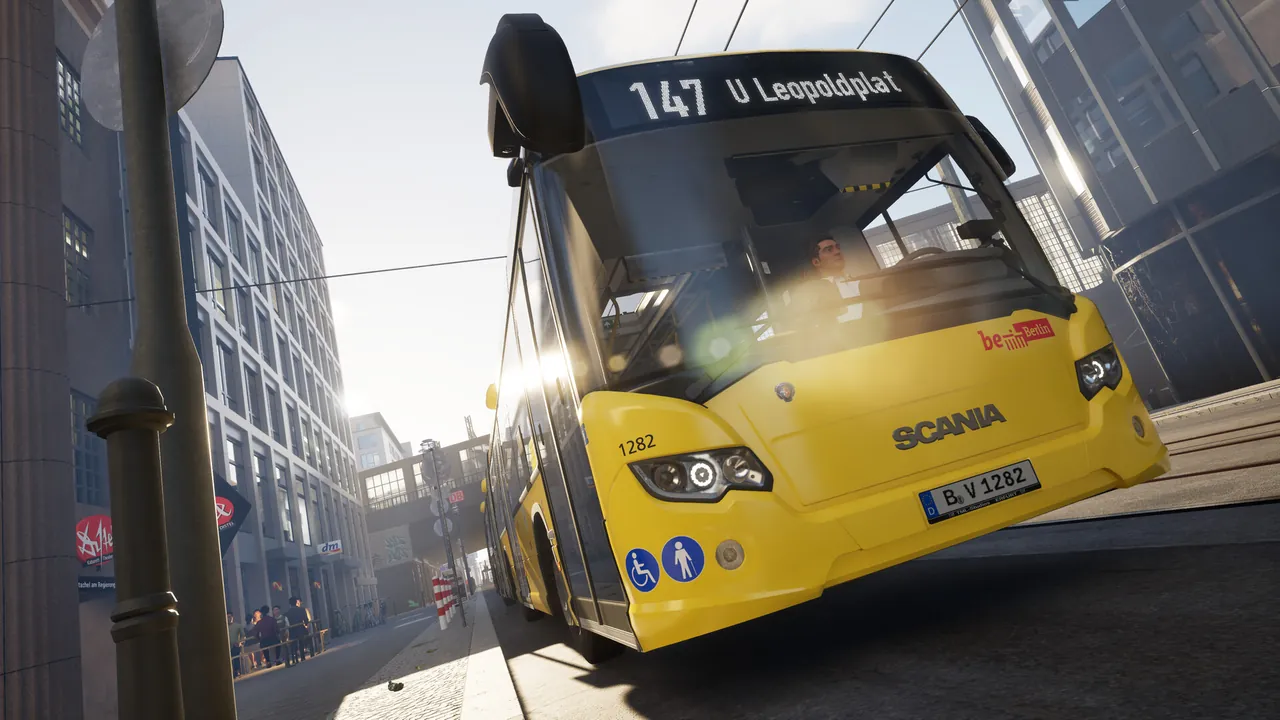
How multiplayer in The Bus works
The Bus does not let one player's game act as the server. Multiplayer always runs through the separate dedicated server program, and every driver, including the person who set it up, connects to it as a client. So someone has to keep that program running: a spare PC, a home server, or a rented game server.
Players connect by GUID, an ID the server prints when it starts, rather than by typing an IP address. That makes sharing a private server simple: post the GUID in your group chat.
What you need
- A machine that stays on while people drive. The server tracks every bus, passenger and AI vehicle in a big, detailed city, so it is not a featherweight.
- Memory: about 6 GB for a few drivers on the stock map, 8 GB for a full 20 driver server with some mods, 12 GB for a large mod list and a busy roster.
- SteamCMD to install the server.
Step 1: Install
steamcmd +force_install_dir /home/steam/thebus +login anonymous +app_update 507320 validate +quit
For a beta branch, add -beta branchname (and -betapassword if the branch needs one) to the app_update part. Every driver must be on the same branch in Steam to connect, so stay on the default branch unless your group agrees otherwise.
Step 2: First start
On Linux:
./TheBus/Binaries/Linux/TheBusServer_Linux -log -port=7777
The -port value is the port the server listens on; pick another one if you run more than one server. Let it start fully and watch the console. Two things to note on this first run:
- The line
Server can be reached with the GUIDfollowed by a long ID. Copy it. - The settings and save folders it creates under
TheBus.
Stop the server before editing its settings.
Step 3: ServerSettings.cfg
Open TheBus/Settings/ServerSettings.cfg. It is a JSON file, so keep the quotes and commas intact. The fields that matter:
| Key | What it does |
|---|---|
serverName |
Name shown to players in the list |
serverPassword |
Password to join. Empty means no password |
adminPassword |
Password for admin access. Use at least 8 characters |
listServerAsPublic |
true to show in the public server list, false to stay private |
maxPlayerCount |
Driver slots, 20 is a sensible default |
A private group server usually looks like this: a password set, listServerAsPublic false, and the GUID shared with the group. A virtual transit company that recruits drivers might list publicly with a password and hand it out after people join their Discord.
Save, start the server again and check the console for errors. A JSON typo shows up immediately.
Step 4: Join
- Start The Bus and open Multiplayer.
- Click Add Server and paste the GUID from the server console. If the server is public, you can also find it by name in the list.
- Enter the password if you set one.
- Pick a bus and start your shift.
Everything about connection trouble, from GUID mistakes to mod mismatches, is in The Bus can't join server fixes.
Step 5: Make yourself owner
The server has four ranks: owner, admin, moderator and user. The owner gets the Admin Menu in the pause screen, where you change the map, the operating plan and the server name without touching files. Getting that rank is a small file edit after your first join, explained step by step in how to become owner on a The Bus server.
Step 6: Mods
Mods from the Steam Workshop go into the server's Mods folder. Compatible mods are switched on automatically. Pay attention to how each mod is flagged on its page: mods marked Client and Server must also be installed by every driver, or they cannot connect. Mods that are server only do not need anything from players. Add mods one at a time and test, so you know which one is responsible if something breaks.
Keeping it updated
When The Bus updates, clients update through Steam and an old server stops accepting them. Run the SteamCMD line again and restart. If you set a beta branch, check that it still exists after a full release, since branches come and go.
Hosting it without a home PC
The pull of The Bus in multiplayer is a city that is always running when a driver wants a shift, and a home PC rarely gives you that. A The Bus server from GamezServers installs the server and puts the server name, password, admin password, maximum players, public listing, auto update and the beta branch with its password in the control panel. We write them into ServerSettings.cfg on every start, so there is no JSON to break. The live console shows the GUID line, the file manager and SFTP handle PlayerData.json and the Mods folder, and a virtual transit company can split the bill between up to 10 drivers.
FAQ
Can I host The Bus multiplayer from my own game?
No. Multiplayer in The Bus runs through the separate dedicated server program, and everyone, including you, joins it as a player.
How do players join a The Bus server?
With the GUID the server prints on start. Players paste it into Add Server in the Multiplayer menu, or pick the server from the list if it is public.
How many players can a The Bus server have?
The cap is maxPlayerCount in ServerSettings.cfg. 20 is the usual default; pick a number that suits your routes and plan size.
How much RAM does a The Bus server need?
About 6 GB for a few drivers, 8 GB for 20 drivers with some mods, and 12 GB for a large mod list.
Skip the setup. Your own The Bus server.
Then $14.99/mo. Just trying it? $3.75 for 3 days
 Minecraft