

 Palworld
How to Update a Palworld Server (Without Losing Your World)
Update a Palworld dedicated server after a patch: back up Pal/Saved first, run SteamCMD app 2394010, restart, and handle Steam vs Xbox patch timing.
Updated Oct 3, 2026 · 5 min read
On this page
- What an update changes and what it keeps
- What goes where
- Before you start
- Step 1: Save and stop the server
- Step 2: Back up first
- Step 3: Run the update
- Step 4: Start and watch the first boot
- Step 5: Check the version and settings
- The gotcha: Steam and Xbox do not patch at the same time
- Common problems
- Updating on GamezServers
- FAQ
To update a Palworld dedicated server, stop it, copy Pal/Saved/SaveGames and Pal/Saved/Config somewhere safe, then run SteamCMD with app ID 2394010 in the same install folder and start the server again. The world, players and Pals carry over, because an update replaces program files only. Every player must be on the same version as the server, so update after the patch reaches all the platforms your group plays on, not just Steam.
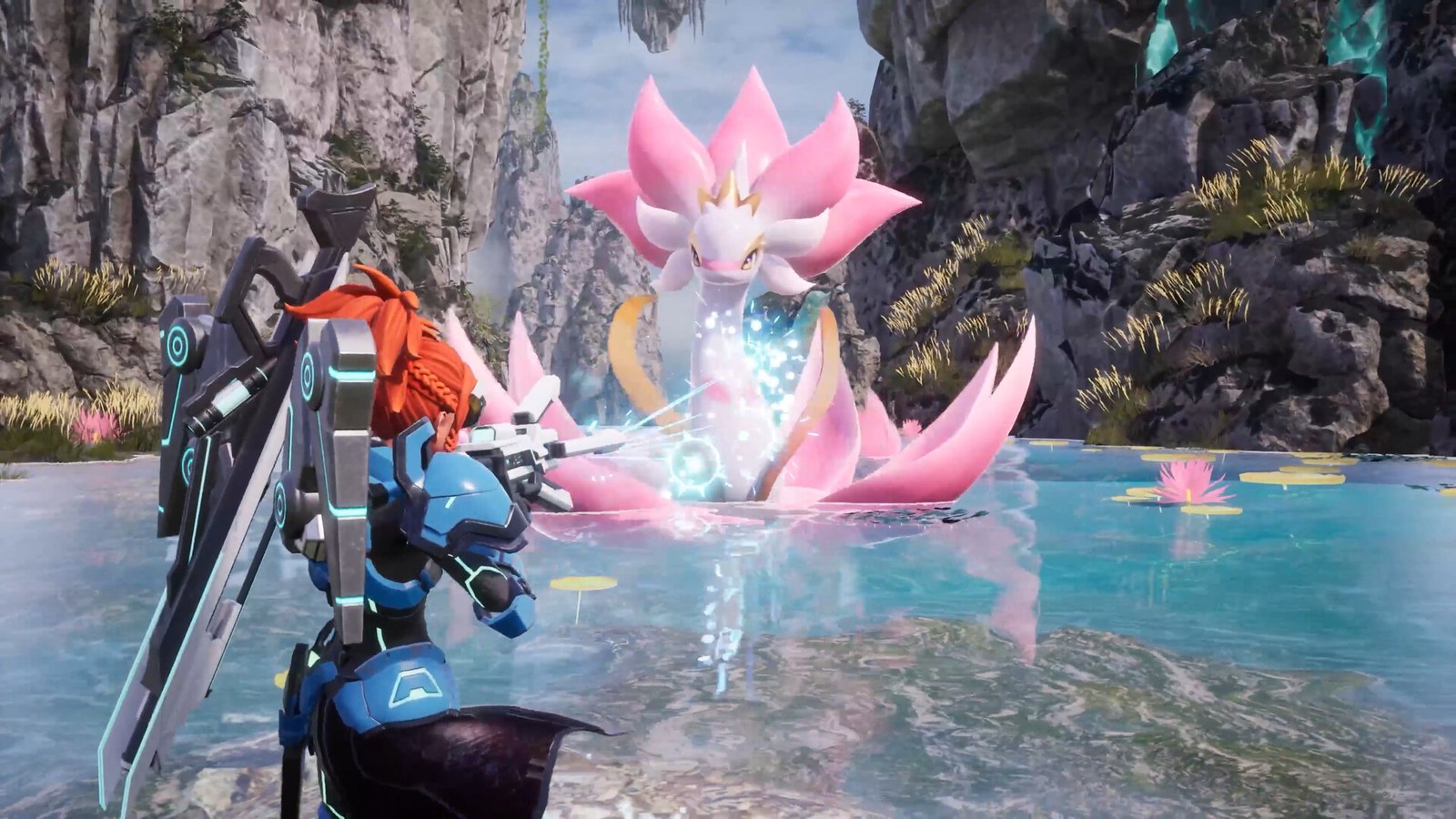
What an update changes and what it keeps
| Thing | On a normal update |
|---|---|
Server program (Pal/Binaries, Pal/Content) |
Replaced with the new version |
World save in Pal/Saved/SaveGames/0/<world id>/ |
Kept. It may be upgraded to the new version on the first start |
Player characters (Players/*.sav in the world folder) |
Kept |
PalWorldSettings.ini |
Kept. New settings from a patch run on their defaults until you add them |
| Ban list and admin password | Kept |
| Going back to the old version | Only with a backup of the save from before the update |
What goes where
| File or folder | What it holds | Path on the server |
|---|---|---|
| World folder | Level.sav (the world), LevelMeta.sav, WorldOption.sav |
Pal/Saved/SaveGames/0/<world id>/ |
| Characters | One .sav per player |
Pal/Saved/SaveGames/0/<world id>/Players/ |
| Server settings | Rates, PvP, death penalty, crossplay | Pal/Saved/Config/LinuxServer/PalWorldSettings.ini (WindowsServer on Windows) |
| Which world loads | DedicatedServerName=<world id> |
Pal/Saved/Config/LinuxServer/GameUserSettings.ini |
The <world id> is a long string of letters and numbers. Back up the whole Pal/Saved folder and you have all of it.
Before you start
- Read the patch notes. Pocketpair posts them on Steam news. Look for words like dedicated server, save data and crossplay. Our Palworld patch notes roundup lists the 2026 ones.
- Check every platform has the patch. Steam, Xbox, PS5 and the Microsoft Store do not always update at the same minute.
- Tell players. Everyone gets a version mismatch until both sides match.
Step 1: Save and stop the server
Run Save over RCON or in the console, then stop the server. Stopping without a save can lose the last few minutes of play.
Step 2: Back up first
Copy Pal/Saved somewhere off the server. If the update goes wrong, this folder is the only way back: once a newer server has loaded and saved the world, an older server build may not be able to open it again.
Step 3: Run the update
From the folder where the server is installed:
steamcmd +force_install_dir /path/to/palworld +login anonymous +app_update 2394010 validate +quit
Use the same +force_install_dir you used to install it. Pointing SteamCMD at a different folder creates a second copy, and your start script keeps running the old one.
Step 4: Start and watch the first boot
Start the server and let it finish loading before anyone joins. After a big patch the first start can take longer while the world is loaded and saved in the new format. Do not stop it in the middle.
Step 5: Check the version and settings
Run Info over RCON. It returns the server version, which should match the latest patch. Since v1.0.4 the version mismatch error also shows the server's version, which makes the check easy from the player side.
If the patch added new settings (v1.0.4 added MaxBuildingLimitNum, for example), the server uses their defaults until you set them. To change one, copy the new lines from DefaultPalWorldSettings.ini in the server root into the OptionSettings=(...) line of your PalWorldSettings.ini, with the server stopped.
The gotcha: Steam and Xbox do not patch at the same time
A Palworld server can only run one version. When a patch lands on Steam first, updating the server straight away locks out Xbox, PS5 and Game Pass players until their store catches up, and the reverse happens if you wait. Pocketpair sometimes ships PC only builds that do not affect crossplay, which makes it harder to tell.
For a mixed group, the safe order is:
- Wait until the patch shows up on every platform your group uses.
- Then update the server.
- Then everyone restarts their game so it installs the patch.
If your group is Steam only, update as soon as the patch is out. Our Palworld version mismatch fix covers the player side, including forcing Steam and Xbox to update.
Common problems
- Version mismatch for everyone after the update: players have not updated yet. Close Palworld fully and let the store install the patch.
- Version mismatch for console players only: their platform has not got the patch. Wait, or keep the server on the old version until it arrives.
- Server still on the old version: SteamCMD updated a different folder, or the server process was never fully restarted.
- Server starts with a brand new world:
DedicatedServerNameinGameUserSettings.inino longer matches your world folder's id. Set it back and restart. - Settings went back to defaults:
PalWorldSettings.iniwas edited while the server ran, or replaced by the default. Restore it from your backup with the server stopped. - World will not load after the update: wait for Pocketpair's hotfix, which often follows big patches within days. Your backup keeps the old world safe meanwhile.
Updating on GamezServers
On a GamezServers Palworld server, Update on start is on by default, so pressing Restart in the panel pulls the new version before the server boots. One thing to know: the Auto restart setting that clears Palworld's memory leak restarts the game process inside the server, not the whole server, so it does not update. After a patch, press Restart yourself. Click Backup before you do, and press Server info afterwards to see the version. The join password, PvP, rates and other panel settings are written into PalWorldSettings.ini on every start, so change those in Settings rather than in the file. To set the server up from scratch, see how to host a Palworld server.
FAQ
Does updating a Palworld server delete the world?
No. The update replaces program files, and the world in Pal/Saved/SaveGames stays. Back it up first anyway, since a world saved by a newer server may not open on an older one.
How do I check my Palworld server version?
Run the Info command over RCON. Players also see the server's version in the version mismatch error since v1.0.4.
Why can my Xbox friends not join after I updated?
The patch reached Steam before Xbox, so the server is newer than their game. They can join again once their store installs the same patch.
Can I roll back a Palworld server update?
Only with a backup of Pal/Saved from before the update, and Steam only offers the current server build, so in practice the fix for a bad patch is usually Pocketpair's hotfix. Keep the backup until it arrives.
Skip the setup. Your own Palworld server.
Then $29.99/mo. Just trying it? $7.50 for 3 days