

 OpenTTD
How to Move an OpenTTD Save to a Server
Move an OpenTTD save to a dedicated server: upload the .sav to its save folder, add every NewGRF it uses, match the version, then load it from the console.
Updated Oct 3, 2026 · 6 min read
On this page
To move an OpenTTD save to a dedicated server, copy the .sav file from Documents\OpenTTD\save\ (Windows) or ~/.local/share/openttd/save/ (Linux) into the server's save folder, upload every NewGRF, AI and game script the save uses, then load it in the server console with ls and load <number>. The server must run the same OpenTTD version as the save or newer, and every player must match the server's version exactly.
What you can and cannot move
| Save | Can it move to a server? |
|---|---|
Single player or multiplayer .sav, same version |
Yes, this guide |
| A save from an older OpenTTD version | Yes, it upgrades on load. Keep a copy, because it cannot be loaded by the old version afterwards |
| A save from a newer version than the server | No. Update the server first |
| A save that uses NewGRFs the server does not have | No. The server refuses to load it until every NewGRF is present |
| A save from a patch pack such as JGR | Only on a server running that same patch pack, not vanilla OpenTTD |
What goes where
| File or folder | What it holds | On your PC | On the server |
|---|---|---|---|
<name>.sav |
The whole game: map, companies, vehicles, money, the list of NewGRFs and scripts it needs | Windows Documents\OpenTTD\save\, Linux ~/.local/share/openttd/save/, macOS ~/Documents/OpenTTD/save/ |
The server's save/ folder |
autosave/ |
Rolling autosaves, plus exit.sav if autosave on exit is on |
Inside save/ |
Inside the server's save/ |
NewGRFs (.grf, .tar) |
Train sets, industries, road vehicles | newgrf/ or content_download/newgrf/ |
The server's newgrf/ |
| AI and game scripts | AI companies and goal scripts | ai/ and game/ (or under content_download/) |
The server's ai/ and game/ |
openttd.cfg |
Network settings, server_game_type, autosave |
Your own config, do not copy | Server root |
secrets.cfg |
server_password, rcon_password |
Do not copy | Next to openttd.cfg |
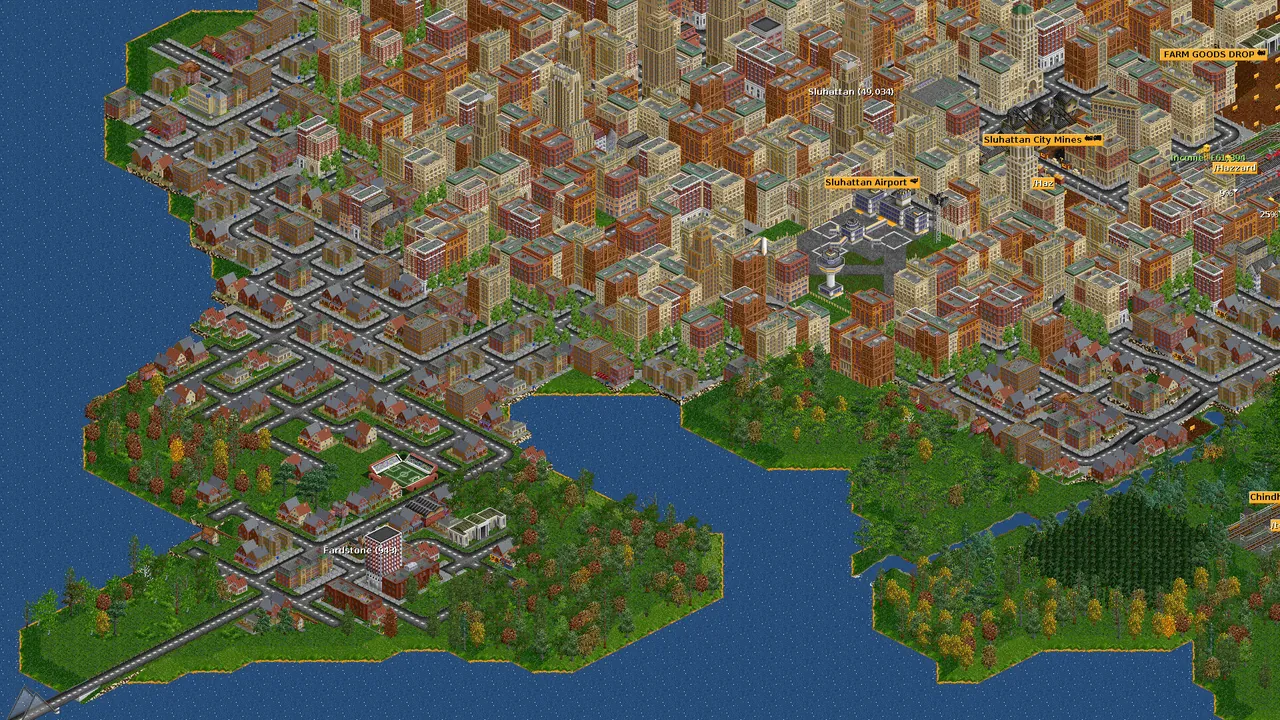
In game, the Load Game window shows your saves. On Windows, the save folder is under your Documents folder unless you moved it.
Before you start
- Save the game under a clear name, such as
ourmap.sav, rather than relying on an autosave. - Check the version. The main menu shows your OpenTTD version. The server must be the same or newer, and players must match the server.
- List the NewGRFs. Open NewGRF Settings from the in game menu with the save loaded. Every file in that list must be on the server.
- Note AI and game scripts. If the save has AI companies or a game script, the server needs those too.
Step 1: Find the server's save folder
Start the server, then type in the console:
save test
Open the file manager and find test.sav. That folder is where the server keeps its saves (normally save/ inside the server's own folder). Your save goes next to it. Delete test.sav afterwards.
Step 2: Upload the save and its content
Upload ourmap.sav into that save folder. Upload NewGRFs into newgrf/, AI into ai/ and game scripts into game/, keeping .tar files as they are. Content from BaNaNaS can also be fetched by the server itself with the console content commands, which saves uploading it.
Step 3: Load the save
In the server console (or over rcon from your game client):
ls
load 3
ls lists the files with numbers, and load takes the number shown next to ourmap.sav, as described in the OpenTTD wiki's dedicated server page. If a NewGRF is missing, the console says so and the load fails, so upload it and try again. Once the map loads, players join through Multiplayer with the address, or from the server list if server_game_type = public is set in openttd.cfg.
Step 4: Sort out companies
Since OpenTTD 14, company passwords are gone. Players join a company, and members invite others from the Online Players window. After the move, have one player take each company and invite their co players.
The gotcha: a restart starts a new map
A dedicated server only loads a save at startup if it is told to with -g <file> on its command line. Without that, every start generates a fresh random map, and the console line you see is Map generated, starting game. On GamezServers the server starts with plain openttd -D, so after any restart, from a crash, an update or a plan change, the server is back on a new map and players wonder where their network went.
Your game is still in the save folder. Load it again with ls and load. To make sure the latest state is always saved, set this in openttd.cfg with the server stopped:
[gui]
autosave_on_exit = true
The server then writes autosave/exit.sav when it shuts down cleanly. After the restart, type ls, open the autosave folder with cd and its number, then ls again and load the number next to exit.sav. Autosaves made while the game runs land in the same autosave folder, so the most you lose to a crash is one autosave interval.
Common problems
- Load fails with a missing NewGRF: the save needs a NewGRF the server does not have, or a different version of it. Upload the exact file.
- Players get a version mismatch: they are not on the server's exact version. On GamezServers the version is set in the panel; email support@gamezservers.com to reinstall on a new version, and your saves stay.
- Server back on a new map after a restart: load the save again from the console, as above.
- Players cannot see the server in the list: set
server_game_type = publicin the[network]section ofopenttd.cfgand restart. - Players missing NewGRFs: if the file is on BaNaNaS, they can download it from the join screen. Otherwise send it to them.
Moving it to GamezServers
On an OpenTTD server from GamezServers, you upload the save and NewGRFs over SFTP (login in Settings) or in the file manager, which also does zips, extract and downloading a file from a link straight to the server. The live console runs ls and load, and a one click Backup protects a map you have spent weeks on. For the config files in depth, see how to host an OpenTTD server.
FAQ
Where are OpenTTD save files stored?
In Documents\OpenTTD\save\ on Windows, ~/.local/share/openttd/save/ on Linux and ~/Documents/OpenTTD/save/ on macOS.
How do I load a save on an OpenTTD dedicated server?
Type ls in the server console, then load with the number of your save. You can also start the server with -g <file> to load it on startup.
Why does my OpenTTD server start a new map after a restart?
A dedicated server without -g generates a new game every time it starts. Load your save again, or load autosave/exit.sav if autosave on exit is on.
Do players need my NewGRFs?
Yes. Players are asked to download missing NewGRFs when they join, which works for anything on BaNaNaS.
Skip the setup. Your own OpenTTD server.
Then $4.99/mo. Just trying it? $1.25 for 3 days